Running Backing Tracks Live From a Phone Without a Laptop
In 2026, plenty of working musicians still walk onto small stages with nothing but a phone in their pocket and a cheap audio interface. Running backing tracks live without a laptop has become routine for solo artists and compact bands who value speed and low weight. The trick is treating the phone as a dedicated playback device, not a multitasking Swiss Army knife. With the right signal path, you can feed the audience a full stereo mix while giving the band a clean click track that never leaks into the front-of-house.
Start by choosing your output method before soundcheck. A wired audio interface with multiple outputs remains the most reliable route. The headphone jack on modern phones can work in a pinch but often introduces ground hum and limits you to a single stereo pair. Bluetooth, even the latest low-latency codecs, stays unusable on stage; dropouts remain common when audiences fill the room and Wi-Fi congestion spikes. Stick to cables you can see and control.
Routing Click and Tracks to the Right Ears
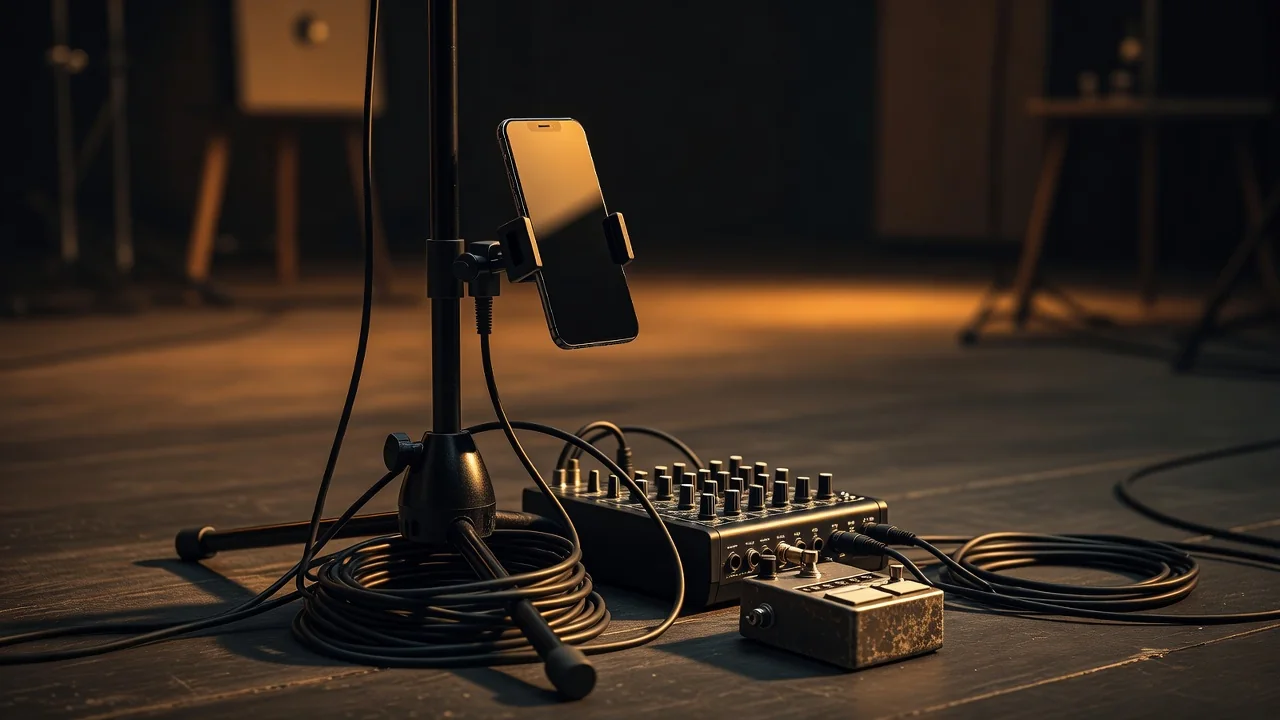
Split the signal so the audience hears the full track while the band follows a click. Most compact interfaces now offer at least four outputs. Send the stereo track to the main mixer and route a mono click to a monitor or in-ear system. Typical latency on a direct-wired interface sits between 4 and 9 milliseconds—imperceptible to most players. Keep the click at −12 dB relative to the track so it guides without overpowering. During rehearsal, walk the room and adjust the track’s low end; live bass can mask kick-drum samples if the PA isn’t tuned.
Building a Bulletproof Set Playlist
Prepare everything locally. Download uncompressed WAV or high-bitrate MP3 files to avoid streaming interruptions. Create a single playlist with intentional gaps of three to five seconds between songs. These brief silences give the band time to breathe, retune, or acknowledge the crowd without awkward dead air. Match perceived volume across tracks by ear and by checking peak meters; aim for −6 dBFS peaks on every file so the set flows without constant fader rides. Label each track clearly—tempo, key, and click presence—so the person running sound or the singer tapping “next” never guesses.
- Use local files stored on the phone’s internal memory rather than cloud services
- Insert 3–5 second gaps between every track for breathing room
- Normalize peaks to similar levels, typically −6 dBFS
- Disable all notifications, auto-updates, and background refresh before the set
- Keep the phone in airplane mode with Wi-Fi and Bluetooth off
- Carry a spare charging cable and a fully charged power bank
If a call somehow slips through or the phone decides to install an update mid-set, the damage is usually limited to one song. The best defense is prevention: turn on airplane mode, close every app except the player, and set the screen to never sleep during performance. Many players tape a small piece of gaffer over the proximity sensor so the screen stays awake even when the phone sits in a pocket. Test the entire chain at home at gig volume so surprises stay rare.
| Output Option | Typical Latency | Channels Available | Main Trade-off |
|---|---|---|---|
| Wired audio interface | 4–9 ms | 4–8 outputs | Requires extra hardware but offers clean split |
| Phone headphone jack + splitter | 1–3 ms | 2 outputs max | Prone to hum; no separate click track |
| Bluetooth receiver | 30–80 ms | 2 outputs | Dropouts common in crowded venues |
Once the set list is locked and the routing tested, the phone becomes an invisible band member. Keep the screen brightness low to preserve battery and avoid blinding the drummer. At the end of the night the whole rig fits back into a coat pocket, leaving room in the van for actual instruments instead of another computer bag. Stage-tested habits like these turn a simple phone into a dependable live tool that never steals focus from the music.